


Understanding the Startup File
The Startup File is your central hub for everything related to a specific startup. From coaching session history and evaluation results to pending tasks and engagement analytics, it consolidates all the information you need to support a startup effectively.
The tabs and information visible to you inside the Startup File depend on the access permissions configured for your user role by your program administrator. If you cannot see a tab mentioned below, contact your admin to request access.
Where to Find the Startup File
Navigate to the Startups tab in the top navigation menu to open the Startup Portfolio. Hover over a startup card in Grid view and click Startup File, or click directly on a startup in Table view.
What You Will Find in the Startup File
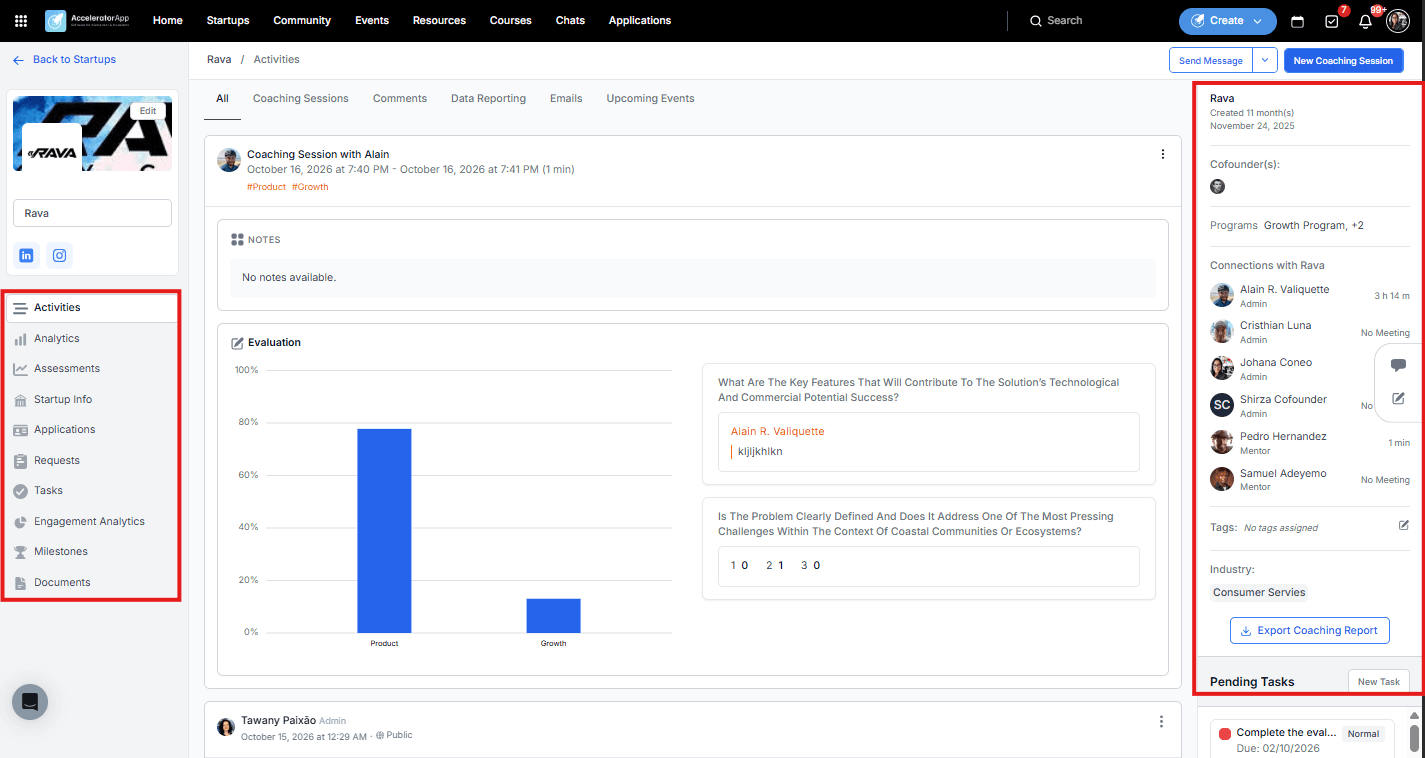
Left Sidebar — Navigation Tabs
- Activities — a chronological feed of all activity related to the startup, including coaching sessions, notes, emails received, data reporting entries, and upcoming events. From here you can also post notes or messages visible to the startup or kept private.
- Analytics — performance metrics and data submitted by the startup over time.
- Assessments — a consolidated view of the evaluation results from coaching sessions you have conducted with this startup, including scores by topic and individual question responses.
- Startup Info — the startup's profile information, including company details and co-founder profiles.
- Applications — the startup's application history and progress through the program's funnels.
- Requests — feedback request forms sent to this startup and their responses.
- Tasks — a full breakdown of all tasks assigned to this startup, including overdue, today, future, and completed tasks.
- Engagement Analytics — a summary of the startup's engagement across coaching sessions, events, and courses.
- Milestones — milestone plans created for this startup, including progress against targets.
- Documents — files uploaded or shared with this startup.
Right Column — Quick Overview
The right-hand column gives you a quick snapshot of the startup's key information without navigating into individual tabs:
- Co-founders — the list of co-founders linked to this startup.
- Programs — the programs this startup is currently part of.
- Connections — the mentors, coaches, and admins connected to this startup, along with the total time spent in sessions with each.
- Tags and Industry — labels assigned to the startup.
- Export Coaching Report — download a report of all coaching activity for this startup.
- Pending Tasks — a summary of open tasks, with a New Task button to add one directly.
Best Practices
- Use the Activities tab for session context. Before a coaching session, review recent activity to remind yourself of past discussions, notes, and follow-ups.
- Use the Assessments tab to track evaluation trends. Reviewing your past evaluations for a startup helps you identify growth patterns and areas that still need attention.
- Use the right column for a quick status check. The Connections panel shows how much time each mentor has spent with the startup — useful for understanding the overall support the startup is receiving.
- Export the Coaching Report when preparing progress reviews. The export gives you a structured summary of all sessions and evaluations for that startup, ready to share with stakeholders.